Productive workflows in Positron
Practical Quarto: Patterns, templates, and tooling @ posit::conf(2026)
Quarto + Positron
Positron is Quarto-ready out of the box
Bundled Quarto CLI
(or one it finds on your path)
= what you need to run quarto commands in the Terminal
Quarto extension
= provides the Quarto: ... commands and UI support
Learn more: https://quarto.org/docs/tools/positron
Basic workflow
Demo: basic workflow
Open
hello.qmdClick Preview (aka the Render button in RStudio)
Quarto commands are run in the Terminal pane
Rendered output opens in the Viewer pane
The Preview button
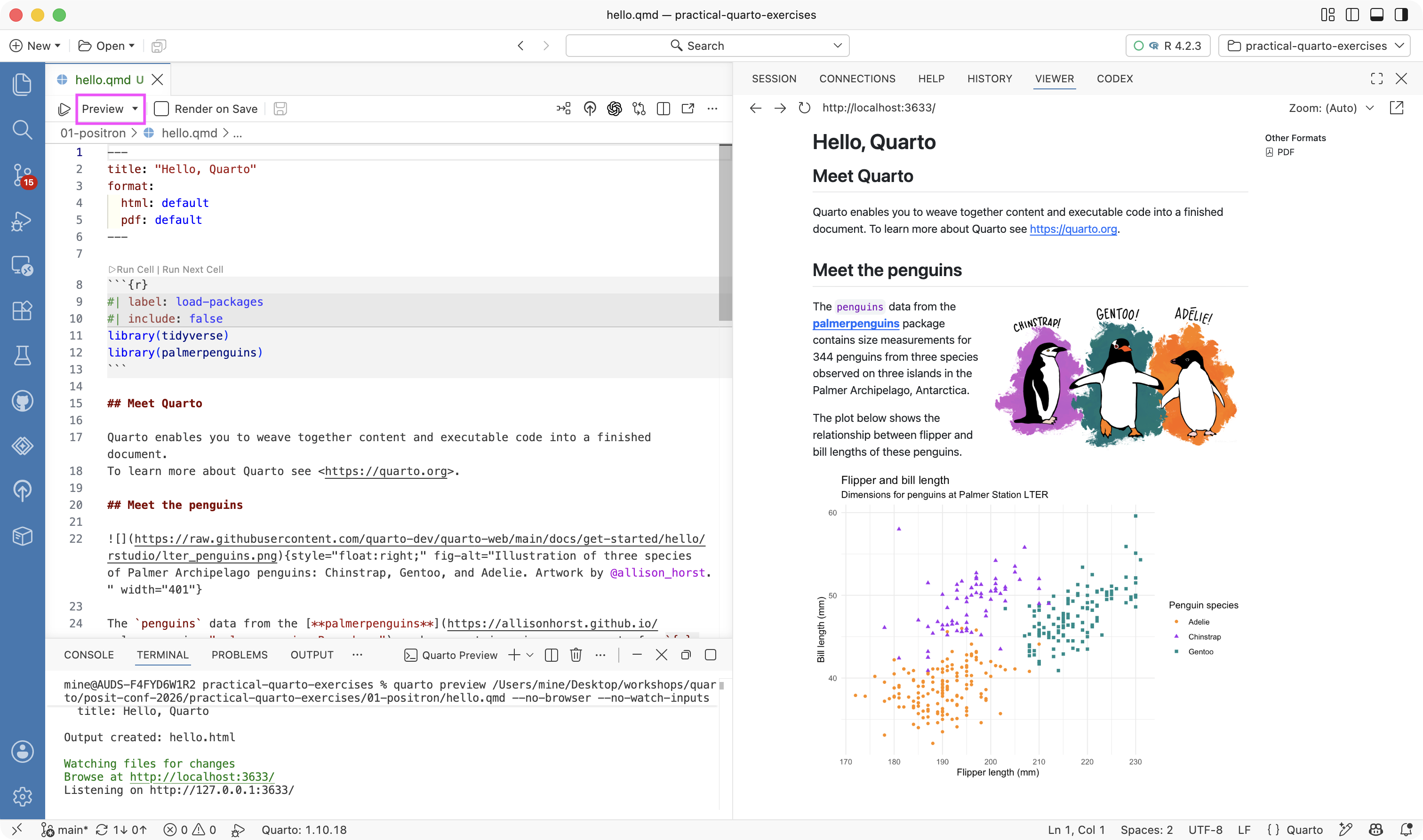
Preview button in the editor toolbar
Shortcut:
cmd/ctrl + shift + K— same as Render in RStudioQuarto version in the status bar
Runs
quarto previewin the TerminalOpens the rendered document in the Viewer
Tip
Want a real browser instead? Set quarto.render.previewType to external.
Aside: Preferences in Positron
In the UI
Command palette:
Preferences: Open User SettingsorPreferences: Open Workspace SettingsSearch by setting name, e.g.
quarto.render
In JSON
Command palette:
Preferences: Open User Settings (JSON)orPreferences: Open Workspace Settings (JSON)User settings stored at user level (outside of the workspace), specific location depends on OS:
- macOS:
~/Library/Application Support/Positron/User/settings.json - Windows:
%APPDATA%\Positron\User\settings.json - Linux:
~/.config/Positron/User/settings.json
- macOS:
Workspace settings in
.vscode/settings.jsonin the workspace
Aside: Preferences in Positron
Any setting you change in the UI is written to the JSON
Workspace wins over User — so a project can set its own rules, and
.vscode/settings.jsoncan be checked into Git for all collaborators.Settings can be scoped to a language, with a
"[quarto]": { ... }block.Filter for Modified settings (
@modified) to see settings you’ve changed.Right-clicking a setting offers Copy Setting as JSON.
For RStudio switchers: https://positron.posit.co/migrate-rstudio-settings-and-extensions.html covers bringing RStudio settings and keybindings across.
Preview a specific format
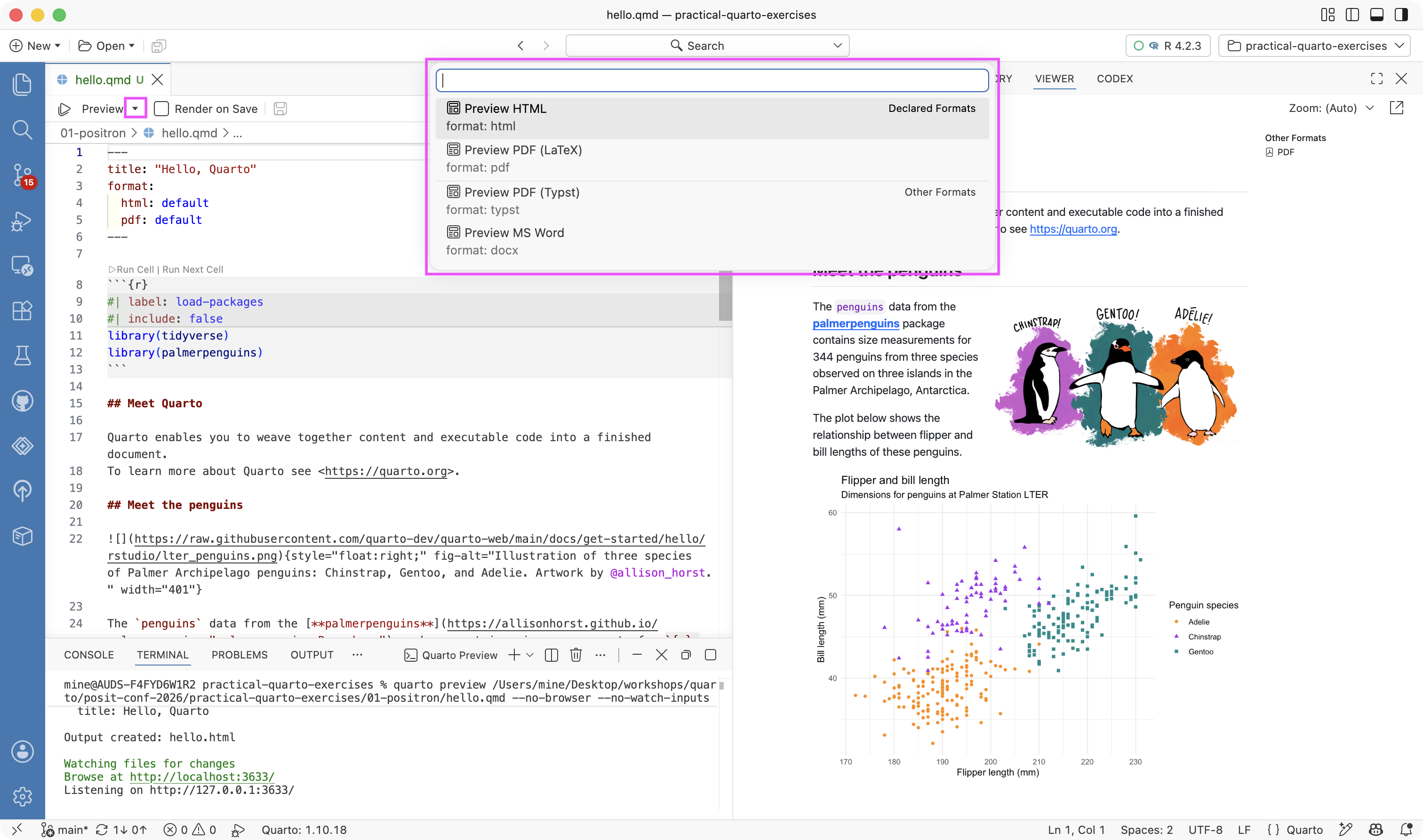
The Preview dropdown lists the formats declared in the document
Command:
Quarto: Preview Format...
Everything is a command
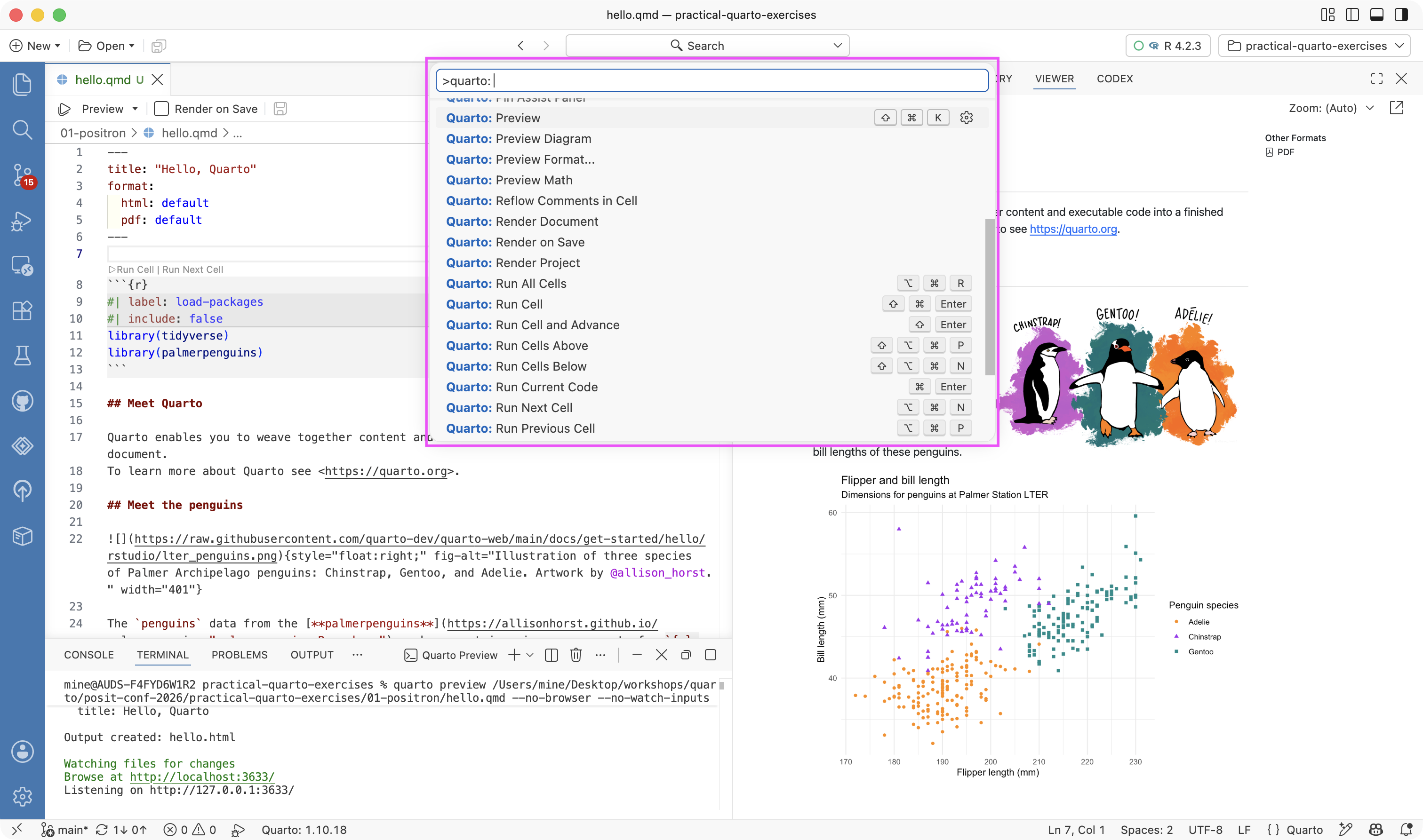
Filter the command palette with
Quarto:to see the whole setQuarto: Render Documentrenders all declared formatsQuarto: Render Projectrenders every file in the project
Render on Save
By default, saving does not re-render — renders can be slow.
Three ways to turn it on:
The Render on Save checkbox in the editor toolbar:
![The editor toolbar showing the Preview button, the Render on Save checkbox, and a floppy disc icon for save.]()
The setting
quarto.render.renderOnSave— searchquarto.renderin SettingsPer document or project, in YAML — supersedes the setting:

Start a new document
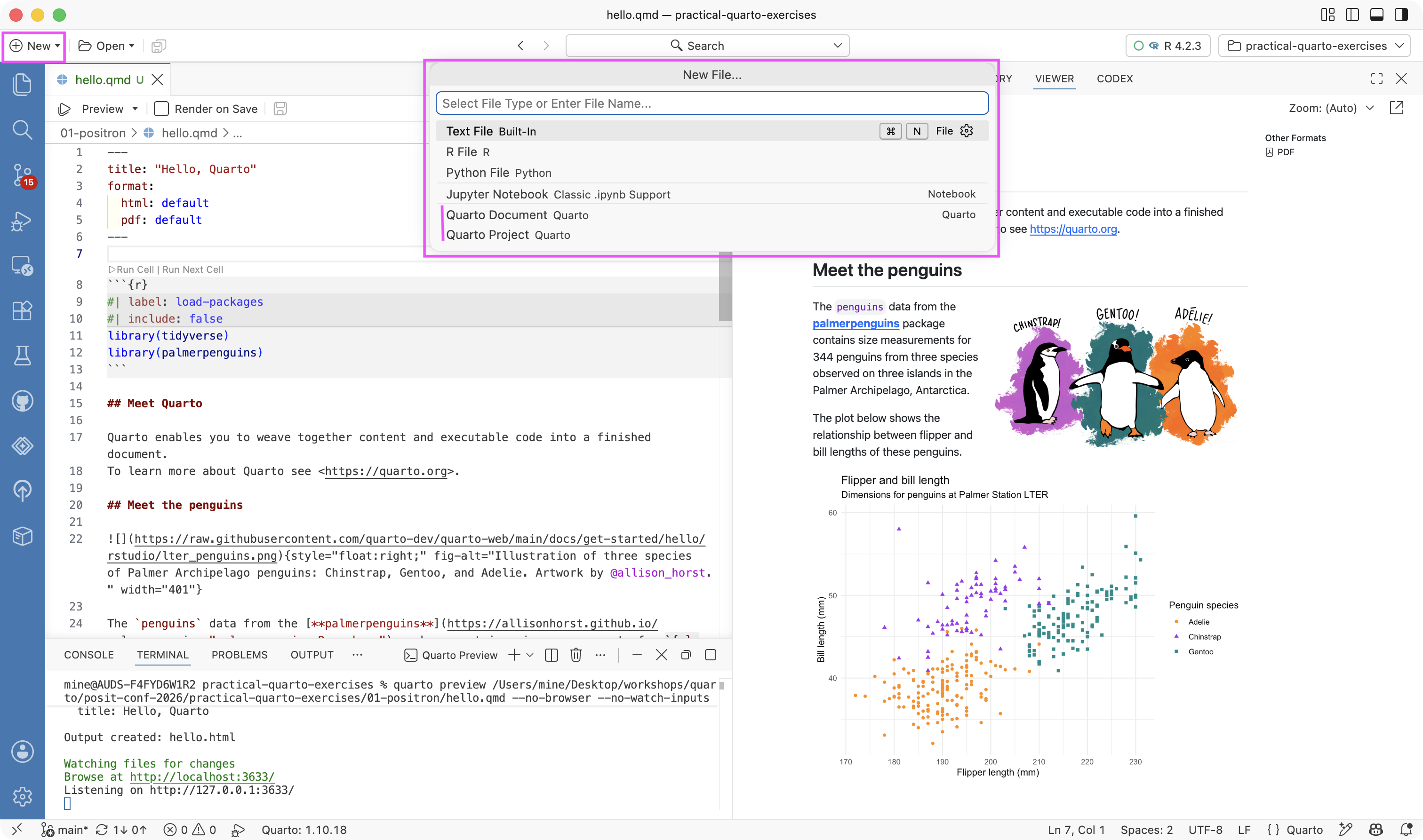
File > New File… then Quarto Document
or the command palette:
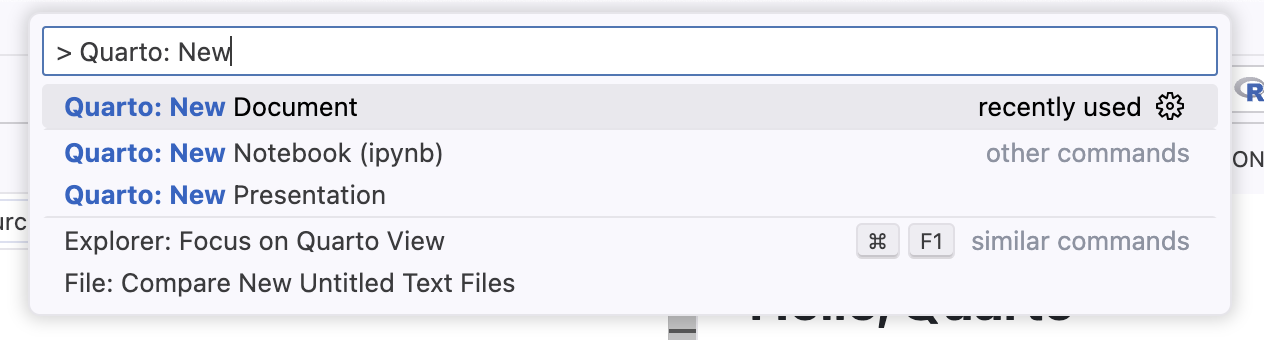
Document workflow
Demo: document workflow
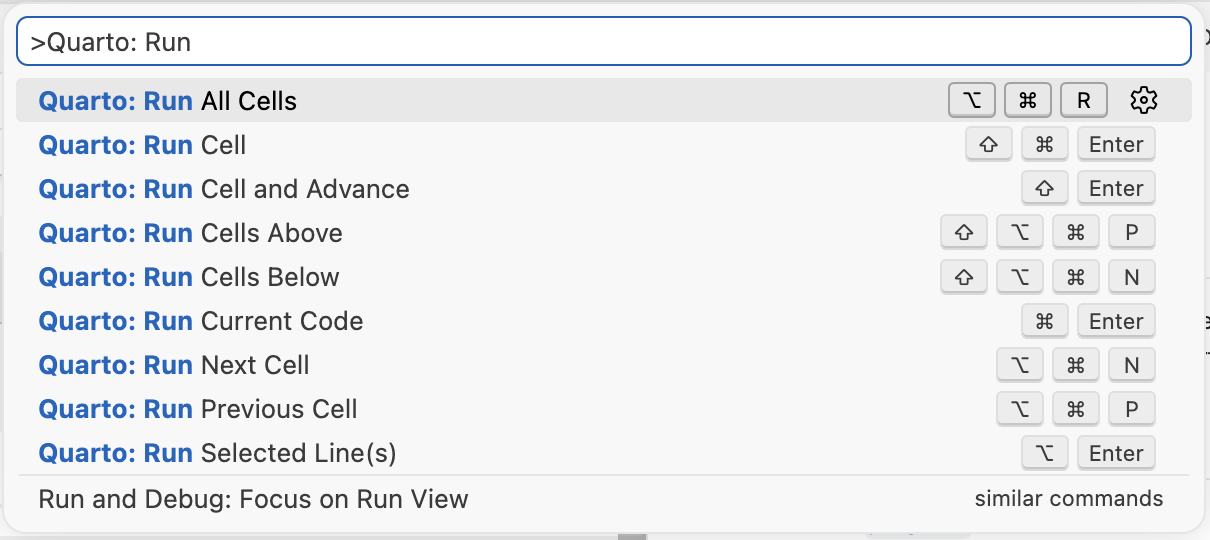
Code cells: the actions above each cell, the
Quarto: Run ...commands, output in the Console or inlineNavigation: Breadcrumbs, Outline pane, Go to Symbol in Editor
Code cells
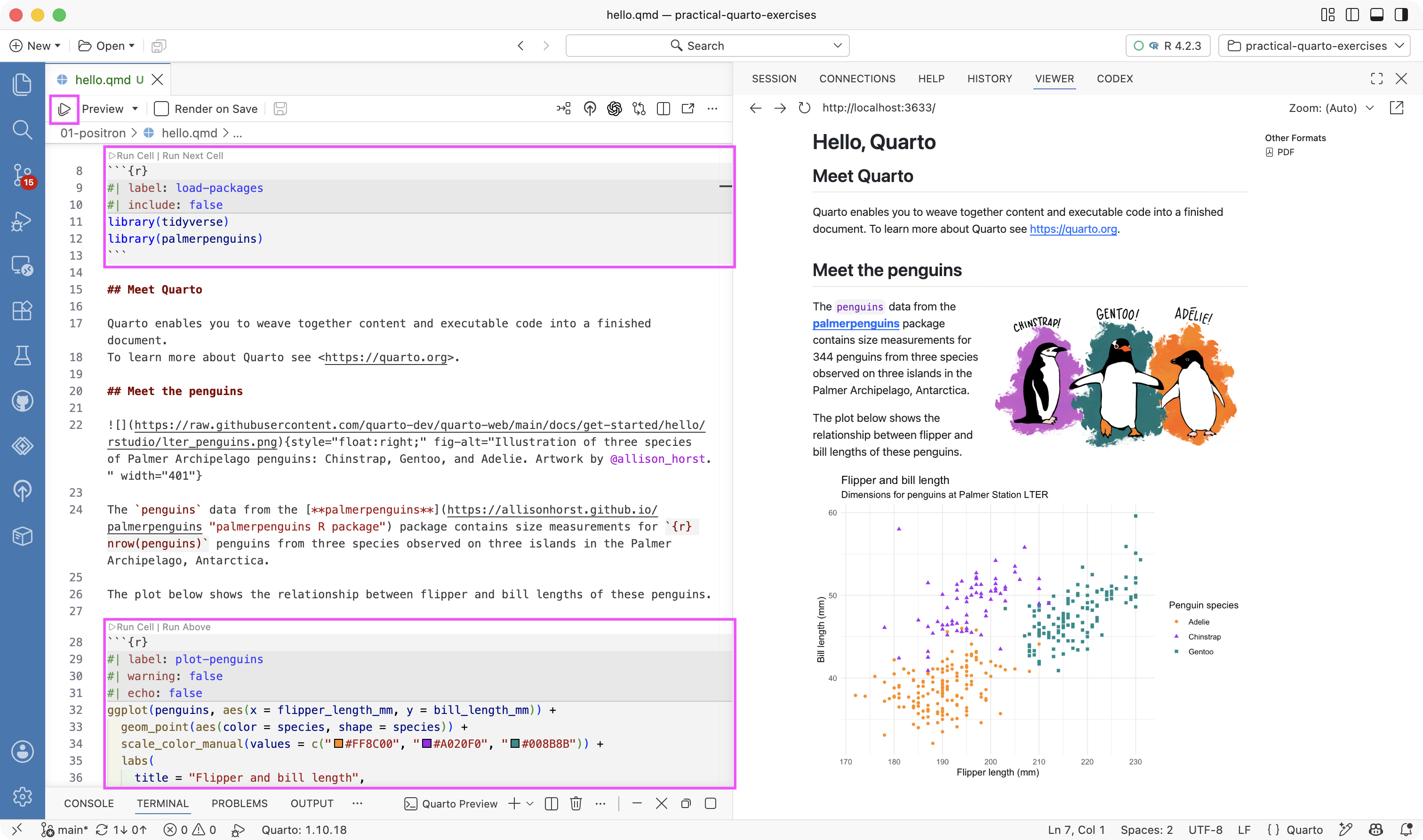
Run Cell | Run Next Cell actions above each cell
Run selection:
cmd/ctrl + enterRun cell:
shift + cmd/ctrl + enterRun all cells:
opt/alt + cmd/ctrl + R
Code cells, from the command palette
Inline output
Output from code cells, in the editor, next to the code that made it — the .Rmd experience RStudio users are used to.
Off by default: turn on
quarto.inlineOutput.enabledEach
.qmdgets its own isolated R or Python sessionPaths behave like they do at render time — no more “works in the console, breaks on render”
Want a console alongside it?
Console: Show Notebook Console, or setconsole.showNotebookConsoles
Your turn 1: Enable inline output
Exercise: 01-positron
Enable inline output for hello.qmd and run the code cells one at a time and then all at once.
Optional: Go to settings and turn on Console: Show Notebook Console.
Insert a code cell
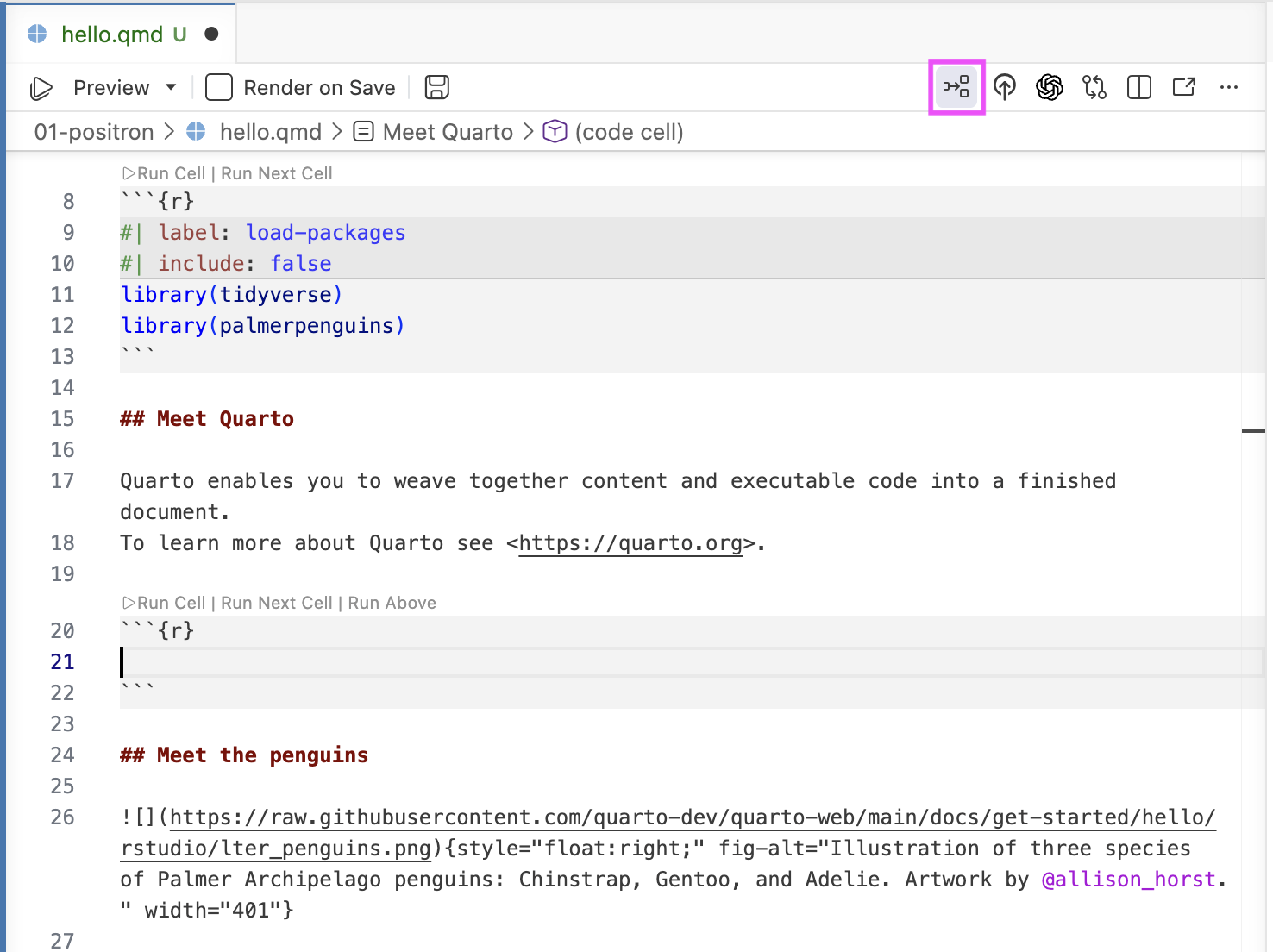
Insert Code Cell in the editor toolbar
Shortcut:
shift + cmd/ctrl + ICommand:
Quarto: Insert Code Cell
Navigation
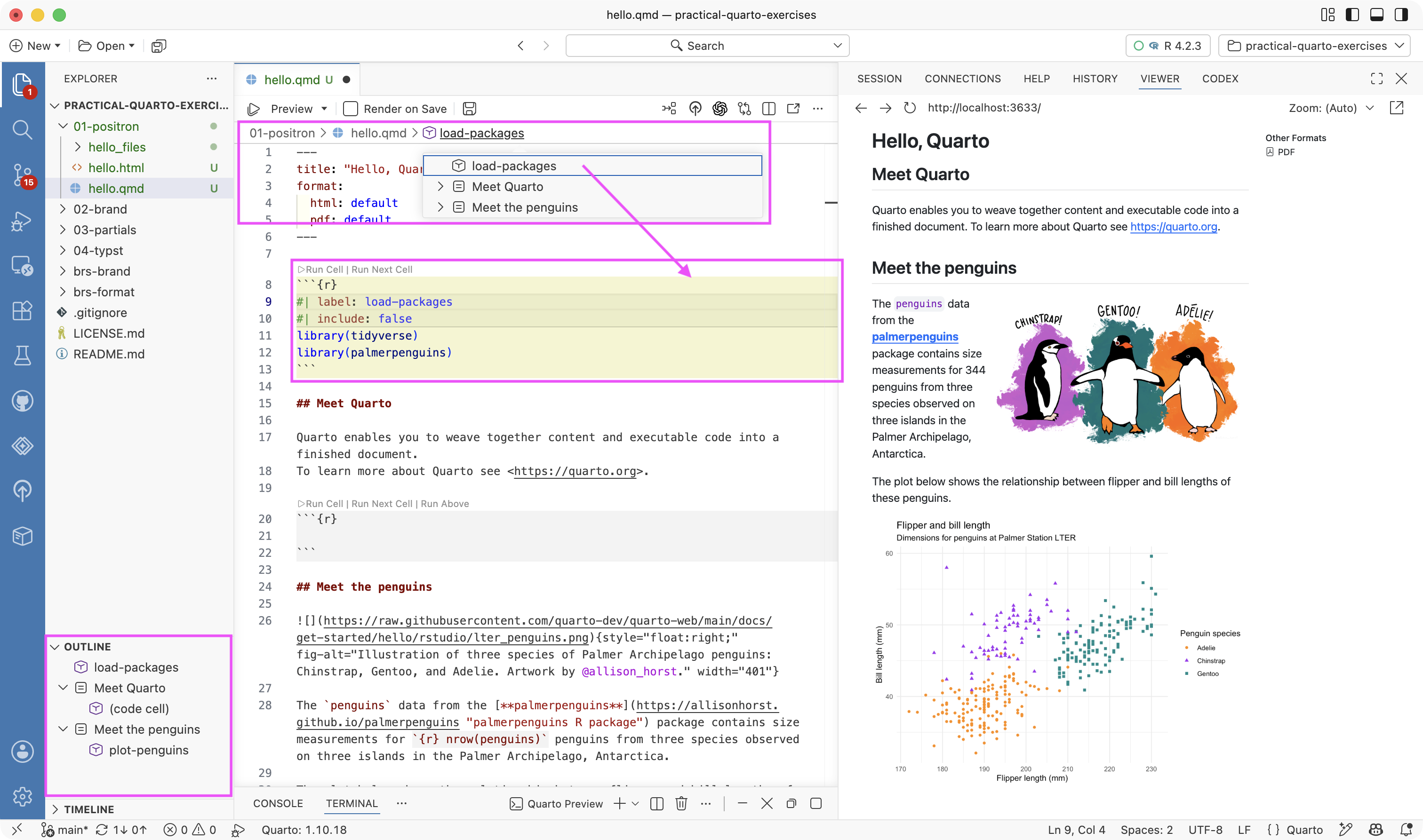
Breadcrumbs at the top of the editor
Outline pane in the sidebar
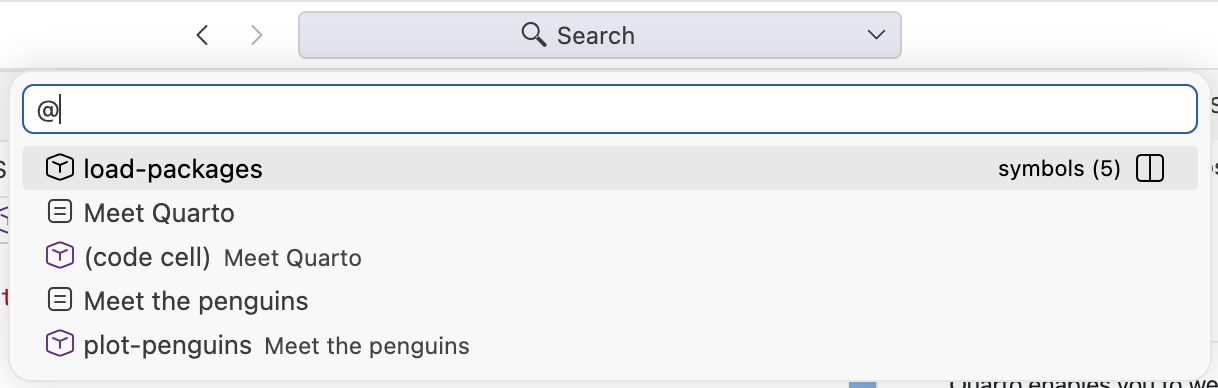
Go to Symbol in Editor:
cmd/ctrl + shift + O, or type@in the command palette
Go to Symbol in Editor
Editing assistance
YAML intelligence: Completion for YAML options, red squiggles for invalid ones on save.
- Works in the front matter, in
_quarto.yml, and in cell options; the diagnostics fire when the document is saved.
- Works in the front matter, in
Help pane: Hover for tooltips,
F1opens full help for the function under the cursor.Live preview: LaTeX math and Mermaid/Graphviz diagrams preview as you type (
cmd/ctrl + shift + L).Quarto: Show Assist Panelopens a sidebar panel that shows an image thumbnail when the cursor is on an image path, and a live equation preview when editing LaTeX math.
Snippets:
Insert Snippetfor boilerplate: code blocks, callouts, divs.- Snippets only show up in IntelliSense if
editor.snippetSuggestionsis set to something other thannone. - The
Insert Snippetcommand works either way.
- Snippets only show up in IntelliSense if
Settings worth adopting
Settings worth adopting
settings.json
{
    "[quarto]": {
        "editor.formatOnSave": true,
        "editor.defaultFormatter": "quarto.quarto",
        "editor.wordWrap": "on",
        "editor.guides.bracketPairs": "active",
        "editor.language.brackets": [[":::", ":::"]],
        "editor.language.colorizedBracketPairs": [[":::", ":::"]]
    },
    "editor.rulers": [80, { "color": "#b22222", "column": 120 }],
    "files.watcherExclude": { "**/.quarto/**": true },
    "search.exclude": { "**/.quarto": true, "**/_freeze": true }
}Formatting
settings.json
{
    "[quarto]": {
        "editor.formatOnSave": true,
        "editor.defaultFormatter": "quarto.quarto",
        "editor.wordWrap": "on",
        "editor.guides.bracketPairs": "active",
        "editor.language.brackets": [[":::", ":::"]],
        "editor.language.colorizedBracketPairs": [[":::", ":::"]]
    },
    "editor.rulers": [80, { "color": "#b22222", "column": 120 }],
    "files.watcherExclude": { "**/.quarto/**": true },
    "search.exclude": { "**/.quarto": true, "**/_freeze": true }
}
Word wrap
Long lines wrap – recommend breaking at sentences:
settings.json
{
    "[quarto]": {
        "editor.formatOnSave": true,
        "editor.defaultFormatter": "quarto.quarto",
        "editor.wordWrap": "on",
        "editor.guides.bracketPairs": "active",
        "editor.language.brackets": [[":::", ":::"]],
        "editor.language.colorizedBracketPairs": [[":::", ":::"]]
    },
    "editor.rulers": [80, { "color": "#b22222", "column": 120 }],
    "files.watcherExclude": { "**/.quarto/**": true },
    "search.exclude": { "**/.quarto": true, "**/_freeze": true }
}
Rulers
Rulers at 80 and 120 as visual guides:
settings.json
{
    "[quarto]": {
        "editor.formatOnSave": true,
        "editor.defaultFormatter": "quarto.quarto",
        "editor.wordWrap": "on",
        "editor.guides.bracketPairs": "active",
        "editor.language.brackets": [[":::", ":::"]],
        "editor.language.colorizedBracketPairs": [[":::", ":::"]]
    },
    "editor.rulers": [80, { "color": "#b22222", "column": 120 }],
    "files.watcherExclude": { "**/.quarto/**": true },
    "search.exclude": { "**/.quarto": true, "**/_freeze": true }
}
Bracket pairs
Fold and color-match fenced divs:
settings.json
{
    "[quarto]": {
        "editor.formatOnSave": true,
        "editor.defaultFormatter": "quarto.quarto",
        "editor.wordWrap": "on",
        "editor.guides.bracketPairs": "active",
        "editor.language.brackets": [[":::", ":::"]],
        "editor.language.colorizedBracketPairs": [[":::", ":::"]]
    },
    "editor.rulers": [80, { "color": "#b22222", "column": 120 }],
    "files.watcherExclude": { "**/.quarto/**": true },
    "search.exclude": { "**/.quarto": true, "**/_freeze": true }
}
Exclude
Exclude files in .quarto/ and _freeze/ from search and file watching to gain speed, especially helpful in big projects:
settings.json
{
    "[quarto]": {
        "editor.formatOnSave": true,
        "editor.defaultFormatter": "quarto.quarto",
        "editor.wordWrap": "on",
        "editor.guides.bracketPairs": "active",
        "editor.language.brackets": [[":::", ":::"]],
        "editor.language.colorizedBracketPairs": [[":::", ":::"]]
    },
    "editor.rulers": [80, { "color": "#b22222", "column": 120 }],
    "files.watcherExclude": { "**/.quarto/**": true },
    "search.exclude": { "**/.quarto": true, "**/_freeze": true }
}
Your turn 2: Adopt the recommended settings
Exercise: 01-positron
Grab the recommended settings from settings-worth-adopting.txt and add them to your workspace or user settings.
Access these settings via the command palette: Preferences: Open User Settings (JSON) or Preferences: Open Workspace Settings (JSON).
Coming from RStudio
What’s different?
Publishing: no button in the editor toolbar, but the pre-installed Posit Publisher extension deploys to Connect and Connect Cloud in one click — no shinyapps.io, RPubs, or Quarto Pub.
Inline output: off by default, and each document gets its own session, we already saw how to turn it on.
R Markdown:
- R Markdown (
.Rmd) files preview with Quarto by default. R: Render Document With R Markdownrenders withrmarkdowninstead.R: New R Markdown from Templatestarts from a template.- Advanced
.Rmdfeatures likeparamshave no interactive support
- R Markdown (
Learn more: https://positron.posit.co/quarto.html
Updating Quarto
Strategy 1: Rely entirely on Positron’s bundled Quarto
Get updates as Positron is updated (with auto-update on)
Currently, no easy way to use this version outside of Positron
Strategy 2: Manage Quarto manually from quarto.org
Positron will prefer this install, even if it’s older
You can specify a path with the
quarto.pathsetting
Either way: the status bar tells you which one won, and changing quarto.path takes a restart.
Formatting with Air
Demo: formatting with Air
Open
hello.qmdand mangle an R cell — odd spacing, one long pipe chainFix it once:
Quarto: Format CellTurn on format on save:
Air: Initialize Workspace FolderMangle the cell again, save, watch it snap back
Air: an R code formatter
An extremely fast R code formatter, from Posit
Ships with Positron — nothing to install, nothing to update
Formats R code in
.Rfiles, and R cells in.qmdfiles when the Quarto extension is active
Learn more: https://posit-dev.github.io/air
Air in a Quarto document
Format once:
Command:
Quarto: Format Cell— formats the cell the cursor is inOr format just a selection:
cmd/ctrl + K, thencmd/ctrl + F
Format on save:
Command:
Air: Initialize Workspace FolderWrites
.vscode/settings.jsonandair.toml— check them in so all collaborators get the same setup
What format on save looks like
Your turn 3: Format with Air
Exercise: 01-positron
Open
hello.qmdand mangle an R cell — odd spacing, one long pipe chainFix it once:
Quarto: Format CellTurn on format on save:
Air: Initialize Workspace FolderMangle the cell again, save, watch it snap back
Inspect the
.vscode/settings.jsonandair.tomlfiles that were written
LLM assistance
Your turn 4: Posit Assistant
Exercise: 01-positron
Open the Posit Assistant pane in the sidebar, log in with the email address you registered for the conference
Ask it to explain the
plot-penguinscell inhello.qmd— it can see the open document and the sessionAsk it to write alt text for the penguins plot, then paste the result into
fig-altRun
/reportto export the conversation as a.qmdRead it, check it’s accurate, then keep it
Posit Assistant
AI assistance built into Positron, aware of your R/Python session:
Chat in the sidebar — sees your console, variables, and files, and can edit the open document
Inline completions as you type — needs a Posit AI Pass or a Copilot sign-in
/reportturns the conversation into a reproducible.qmdFix and Explain buttons on error output
Learn more: https://assistant.posit.co/docs/getting-started
Practical, deliberate uses in a Quarto workflow
Good fits:
Draft and revise prose; tighten wording
Write alt text for figures
Explain or debug a code cell; interpret an error message
Fix YAML indentation and option typos
Your job, not its job:
Review every word before finalizing
Run every line of code it writes
Check every factual claim
Keep secrets and credentials out of prompts
Wrap-up
Learn more
Quarto docs: Guide > Tools > Positron — the Positron-specific Quarto features
Positron docs: Quarto —
quarto.path, rendering.Rmdfiles with {rmarkdown}Positron docs: inline output — per-document sessions, output in the editor
Formatting R code with Air — setup, format on save,
air.toml